MoveOnLah · Driver guide
HD voice packs
Download, select and update your navigation voice — with numbered roundabout exits and road-name audio for your route.
Set up and test your voice while parked, before starting your drive.
Step 01
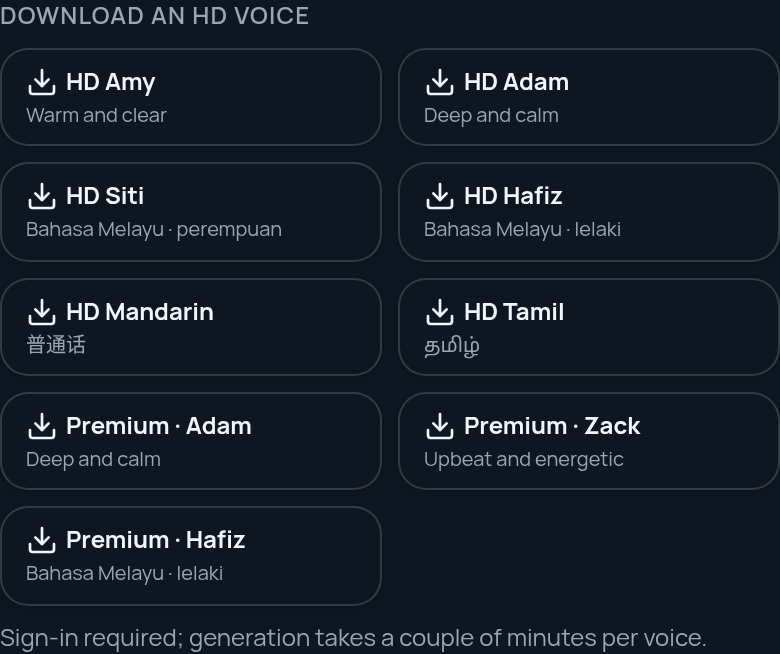
Download your HD voice
- Sign in to MoveOnLah on the phone and browser you use for driving.
- Open Voice packs using the download button above. Tap HD Amy, HD Hafiz or another voice you prefer.
- Keep the page open while the progress count increases. Generation requires internet and AI credits and may take a few minutes.
- Once complete, the pack saves automatically and appears in the saved-voices list on this phone. No APK or separate file installation is needed.
Step 02
Select it for navigation
- Return to the map and tap the voice button to open Navigation voice.
- On the Voices tab, scroll to My recorded voices and tap your saved pack’s name. A check mark identifies the selected pack.
- Tap the play icon beside that pack to test it. Select Full guidance, raise Voice volume and make sure alerts are not muted on the map.
- Choosing a pack manually turns off Auto-select by route region, keeping your chosen voice selected.
Step 03
Update an older pack
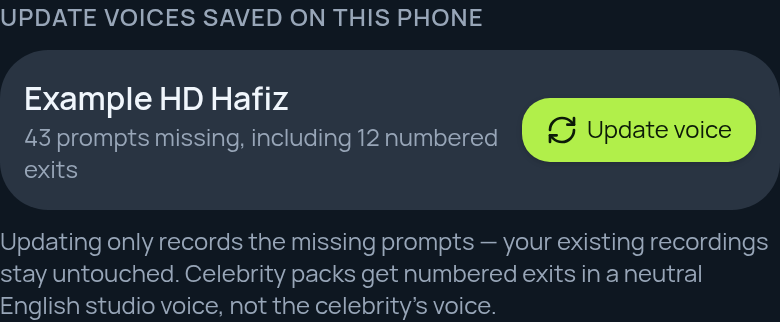
- Open Voice packs on the same phone and browser. Find your pack under Update voices saved on this phone.
- If prompts are missing, tap Update voice and wait for completion. In the Navigation voice panel, this control is labelled Update.
- Up to date means every fixed prompt is recorded, including numbered roundabout exits. Existing recordings are kept.
- This update fills missing directions only. It does not automatically add road names for a new route.
Add real road names for your route
- Plan a destination and choose a route, then select your HD pack in Navigation voice.
- Find HD road names and tap Download route road names. Stay online while the clips are generated.
- Wait for Road names ready, then tap Preview road name. Repeat for a different route or newly rerouted instructions.
These are route-specific clips, not a download of every road name. Missing or failed clips can still use device speech; “Up to date” on the packs page covers fixed prompts only.
Before you drive
Where are my packs saved?
On this device and browser, not synced to your account. Use moveonlah.com.my consistently: another browser, domain, device or private session may show a different list. Clearing site data can remove packs. In My recorded voices, use the download icon beside a pack to export a backup; use Import to restore the JSON file.
Will everything work offline?
Saved audio clips can play offline. Downloading, updating and preparing road names need internet, sign-in and available AI credits. This does not make Maps, live traffic or route planning available offline.
I cannot hear turns or exits
Test the play icon beside your saved pack. Check the phone’s media volume, Bluetooth audio output, Voice volume, Full guidance and the map’s mute control. Update missing prompts. If a direction still fails, report the pack name and the exact instruction using the feedback form below.
Download failed or stopped
Check your connection and available device storage, then try again while signed in. An AI-credit error needs available credits before you retry. Existing recordings remain when an update fills missing prompts; road-name clips already saved remain available after a partial download.